

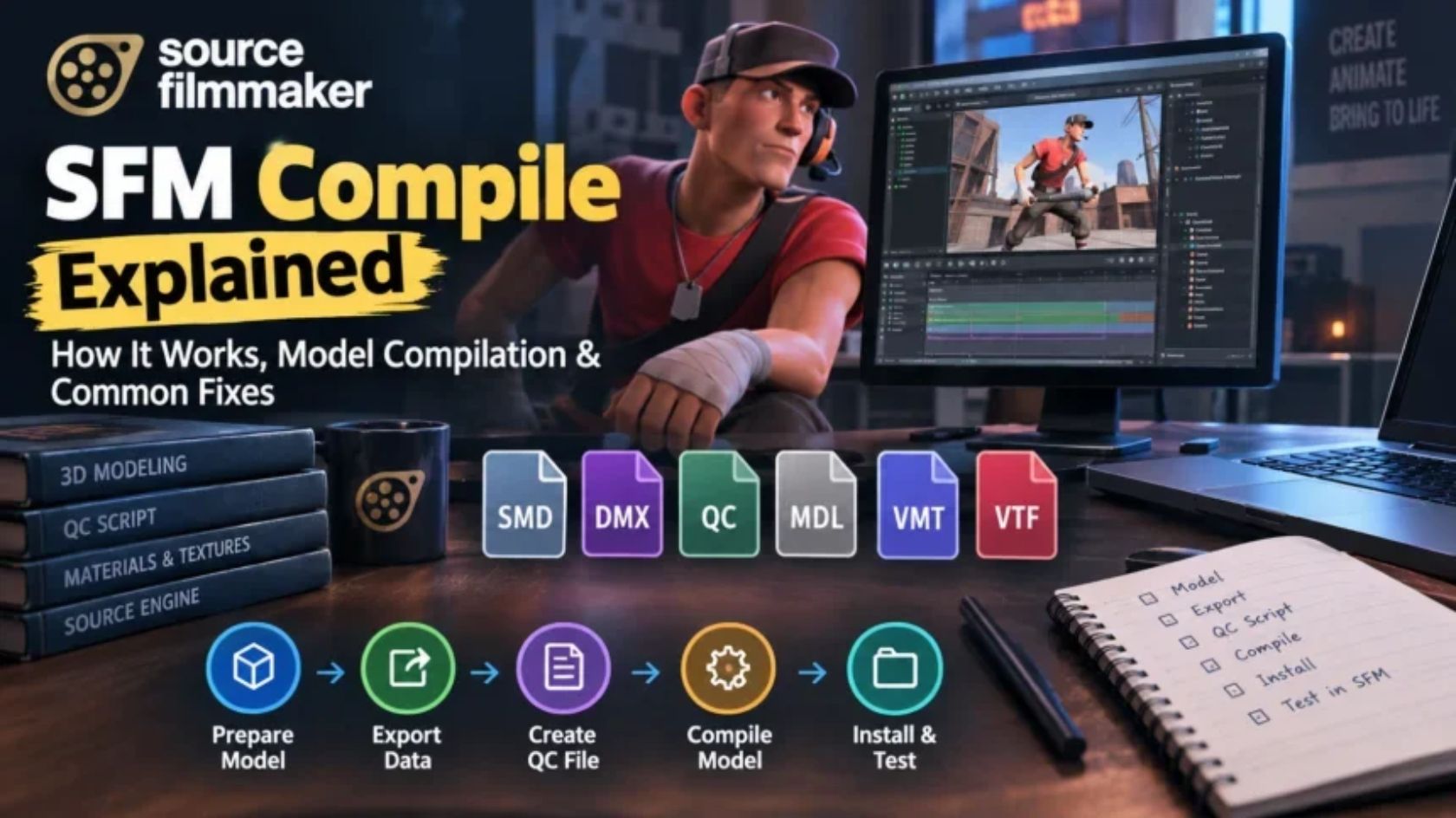
Creating custom characters, detailed environments, and cinematic animations in Source Filmmaker (SFM) can be exciting until a model refuses to load, textures disappear, or animations fail to work. This is where SFM compile becomes an important part of the workflow. Model compilation helps transform source assets into formats that Source Filmmaker can recognize and use inside a scene.
Whether you are a beginner creating your first custom character or an experienced animator troubleshooting a complex model, understanding the SFM compilation process can save time and prevent common errors. This guide explains what SFM compile means, how model files work, which tools you need, and how to solve frequent problems. You will also learn seven practical tips for organizing assets, preparing materials, configuring QC files, and testing compiled models. By the end, you will have a clearer workflow for preparing custom models for Source Filmmaker on a Windows PC.
What Is SFM Compile?
SFM compile refers to the process of converting model source files into assets that work with Source Filmmaker, Valve’s animation and filmmaking application built on the Source engine. Depending on the model, the process may involve converting geometry, defining a skeleton, setting up materials, and processing animations. The resulting files must follow the formats and technical rules supported by the relevant version of the Source engine.
For example, a model created in Blender may contain a mesh, an armature, UV coordinates, and texture images. These elements do not automatically become a working SFM character. The model must be exported into a compatible intermediate format, configured through a QC (QuakeC) model script, and processed with an appropriate compiler, such as a compatible version of studiomdl.
It is important to distinguish model compilation from rendering. Compilation prepares assets for use in the engine, while rendering produces the final images or animation frames. A successful compile does not guarantee a perfect model; materials, skeletons, scale, and animation compatibility still require testing inside SFM.
Understanding Source Filmmaker
Source Filmmaker is a desktop animation tool developed by Valve. It uses the Source engine to let creators arrange characters, props, lighting, cameras, and environmental effects in a timeline-based filmmaking workspace. Artists can animate characters, adjust facial expressions, control camera movements, and produce still images or videos without building a traditional animation pipeline from scratch.
The software uses a specialized asset structure. Models commonly rely on StudioMDL data, material definitions, texture files, skeleton information, and animation sequences. Many assets are stored in game content directories or packed game archives, while custom content may be installed in an appropriate user-mod or game-specific directory. The exact setup depends on the Source engine branch and the content being used.
Understanding this structure is essential when learning SFM compile. A character might appear correctly in a modeling program yet fail in SFM because its export settings, material paths, bone names, or compiled file format are incompatible. Learning how these components connect makes troubleshooting more systematic and reduces the need to repeat the entire compilation process.
Why Do Models Need to Be Compiled?
A modeling application stores information in its own project format, which may preserve editable geometry, modifiers, materials, and rigging controls. A real-time engine needs data arranged in a format it can load efficiently. Compilation converts supported source assets into the engine’s model representation and applies instructions supplied by the model’s QC script.
For Source-engine workflows, compilation can produce an MDL model and related companion files, depending on the engine branch and compiler. These assets may define geometry, bone structures, animation data, hitboxes, and other model properties. Texture images and material definitions usually require separate preparation and must be accessible through the correct game search paths.
Not every model needs to be compiled by the user. Existing compatible models already supplied with SFM or installed through a supported content workflow are generally ready to use. Compilation is primarily necessary when creating or modifying custom models, porting assets from another application, or rebuilding a model after changes. The goal is not simply to create a file, but to produce an asset that loads correctly and behaves as expected in the engine.
SFM.Compile
The term “SFM.Compile” may appear in tutorials, search queries, file discussions, or descriptions of tools related to Source Filmmaker. It is best understood in context rather than assumed to be the name of one official Valve utility. In most model-creation discussions, the phrase refers broadly to compiling a custom model for SFM.
The main compilation process typically involves a model exporter, a QC script, and a compatible version of the StudioMDL compiler. The exporter prepares geometry and skeleton information, while the QC script tells the compiler which files to process and how to construct the model. The compiler then generates the model files used by the engine.
Before downloading an unfamiliar SFM compile utility, check its documentation, supported engine branch, and source. Avoid tools that promise automatic compatibility without explaining their requirements. Some community tools simplify repetitive tasks, but they do not remove the need for valid geometry, correctly configured materials, or a suitable skeleton. Using a documented workflow is more reliable than assuming every tool labeled “SFM compiler” will work with every model.
Common SFM Compile File Formats
Several file formats work together during Source Filmmaker model preparation. Each has a different purpose, and confusing them can lead to errors. The most important files include compiled model data, texture images, material definitions, and the QC script that controls compilation. Knowing what each file does makes it easier to identify the source of a problem.
A typical custom model project might contain an exported reference mesh, texture images, VMT material files, a QC script, and the compiled output. File extensions alone do not guarantee compatibility: the internal structure, expected directory paths, and target engine version also matter. Keep original source files separate from compiled assets so that you can correct problems without losing editable work.
MDL Files
An MDL file is a central part of a Source-engine Studio model. It contains model information used by the engine, although the complete model may depend on additional companion files. Depending on the engine branch, related files can include VTX, VVD, and other data files that provide mesh, vertex, or optimization information.
For SFM, a compiled MDL must match the model’s supporting files and the engine’s expectations. Copying only the MDL into a directory may leave the model incomplete. If a custom model fails to load, verify that the compiler generated all required outputs and that they were placed in the correct content location.
VTF Textures
Valve Texture Format (VTF) is a texture format used by Source-engine games. It stores image data in a format designed for the engine, potentially including mipmaps and other texture information. A common workflow starts with an image such as a PNG or TGA and converts it to VTF using a compatible texture tool.
Texture dimensions, image transparency, compression, and file paths can all affect the result. A model can compile successfully yet appear purple and black, show missing surfaces, or lack transparency if its textures are unavailable or incorrectly configured. Keep the original images so you can edit them later and regenerate the VTF files when needed.
VMT Materials
Valve Material Type (VMT) files are text-based material definitions that tell the Source engine how to render a surface. A VMT references one or more textures and specifies a shader and material parameters. For example, a basic material may use the VertexLitGeneric shader and reference a VTF texture through its $basetexture parameter.
The material path is important because Source-engine models do not simply display an image because it sits beside the model. The VMT must reference the texture using the expected material-relative path, and the model’s material names must agree with the available files. Incorrect capitalization, directory names, or texture references can cause materials to disappear even when the VTF file exists.
QC Files
A QC file is a text-based model compilation script. It tells StudioMDL how to build the model, including which reference mesh to use, where to place the output, which materials directory to reference, and which skeleton or animation files to process. Commands such as $modelname, $body, $cdmaterials, $sequence, and $collisionmodel may appear in a QC file, depending on the model’s needs.
QC syntax and supported commands vary by model type and compiler version. A missing file, incorrect path, invalid command, or mismatch between the QC and exported model can stop compilation. Start with a documented example designed for your target engine branch, then modify it carefully. Avoid copying a QC file from an unrelated model without checking every path and directive.
SFM Compilation
SFM compilation is a sequence of preparation, conversion, and verification steps. First, the creator prepares the model geometry and skeleton in a 3D application. Next, the model is exported into a format accepted by the chosen Source-engine toolchain. Texture images are converted as necessary, and VMT files connect those textures to the model’s materials.
The QC script brings the model settings together. It identifies the reference mesh and defines other properties required for compilation. A compatible StudioMDL compiler processes these instructions and generates the output files. Those files then need to be placed where Source Filmmaker can find them through its configured content paths.
The final step is testing. Load the model in SFM, inspect its materials, check its size, pose the skeleton, and test available animations. If something fails, isolate the problem rather than changing several files at once. A repeatable SFM compile workflow makes errors easier to diagnose and helps ensure that later revisions do not introduce new problems.
The Basic SFM Compile Workflow
A reliable SFM compile workflow begins with a clean project directory and a clear understanding of the target Source-engine branch. Before exporting anything, confirm that your tools support the formats and commands required by the model. Blender, an appropriate Source model exporter, a VTF texture tool, and a compatible StudioMDL compiler may all be needed. The exact combination depends on whether you are creating a character, a static prop, or an animated asset.
Work through each stage in order, and keep source files separate from compiled output. This approach helps you identify whether a failure comes from geometry, materials, the QC script, or the compiler itself. The following steps outline a practical workflow for preparing a custom model for Source Filmmaker.
1. Create or Prepare the Model
Start by creating your model in a 3D application such as Blender. Check the mesh for unwanted duplicate geometry, broken normals, unnecessary internal faces, and disconnected components. For an animated character, also verify that the armature and mesh deformation behave correctly before exporting. Fixing these problems early is easier than diagnosing them after compilation.
Use a compatible exporter and follow its instructions for coordinate orientation, scale, bone limits, and supported mesh features. Source-engine pipelines may impose restrictions that differ from those in modern modeling software. Test a simple reference model first if you are unfamiliar with the exporter. Save a separate working copy so that export adjustments do not damage your original project.
2. Prepare the Textures
Unwrap the model’s UVs and make sure the texture artwork fits the intended surfaces. Save source images in a format supported by your texture workflow, such as TGA or PNG, then convert them to VTF when required. Check image dimensions, alpha channels, and transparency before conversion. These details are particularly important for hair, glass-like surfaces, and other materials that depend on transparency.
Organize textures in a predictable directory structure. Record which image belongs to each material and avoid using different filenames for the same asset in separate locations. If the model contains several materials, verify that each one points to the intended image. This preparation reduces missing-texture errors and makes later revisions easier to manage.
3. Create the Material Files
Create a VMT file for every material the model needs. Each file should identify an appropriate shader and reference the correct texture. A simple opaque character material may use VertexLitGeneric, but other surfaces may require different shader settings. Use documentation and examples that match the target engine rather than copying settings from an unrelated game.
Check that the VMT and VTF files are stored in the expected material directory. Their names and references must match the model’s material assignments and the paths defined in the QC script. After creating the files, test the material references individually where possible. Correcting one path at a time is more effective than changing the entire directory structure when a texture is missing.
4. Create a QC File
The QC file provides instructions for compiling the model. It commonly defines the output model path, reference mesh, material directory, and any animation or collision settings needed by the asset. A simplified script might contain commands such as $modelname, $body, $cdmaterials, and $sequence. The exact commands depend on whether the asset is a static prop, an animated character, or another supported model type.
Check every filename and path before running the compiler. Ensure the reference mesh name matches the exported file, and confirm that any animation source files exist. Do not add animation or collision directives simply because another model uses them. Begin with a minimal, valid configuration and add features as needed. This makes compiler errors easier to understand.
5. Run the Model Compiler
Use a StudioMDL compiler compatible with the target Source-engine branch. Depending on your setup, you may launch it through a supported tool or command-line workflow. Provide the correct QC file and ensure that the compiler can access all referenced source files. Read the output carefully rather than assuming that the process succeeded because a window closed or some files appeared.
Compiler messages often identify a missing file, unsupported command, invalid model reference, or other problem. Address the first meaningful error and compile again. Later messages can be consequences of the initial failure, so trying to fix all of them at once may waste time. Once compilation succeeds, check the output directory for the expected model files and related data.
6. Test the Model in SFM Compile
Place the compiled assets in a content directory that Source Filmmaker can access. Follow the directory conventions and search-path requirements for your installation or mod. If the model does not appear, check its location and filename before rebuilding it. A correctly compiled asset may still be invisible to SFM when its files are stored outside the application’s accessible content paths.
Load the model into a test scene and inspect its appearance from several angles. Check texture quality, transparency, scale, bone movement, facial controls, and available animations. Test extreme poses as well as the default position because rigging issues may only appear when a joint bends. Keep notes about any corrections and make one change at a time. This final verification is an essential part of a dependable SFM compile workflow.
Common SFM Compile Problems
Compilation errors can arise from missing source files, unsupported commands, incorrect paths, broken rigging, or incompatible tool versions. Some issues prevent compilation entirely, while others appear only after the model is loaded into SFM. Knowing where a problem occurs helps narrow down the cause.
Start by reading the compiler’s first relevant error and checking the files named in the message. If compilation finishes but the model looks wrong, inspect the materials, skeleton, and model settings inside SFM. Avoid replacing working files or changing multiple configuration values without a clear reason. A controlled troubleshooting process protects your project and makes the result easier to reproduce.
Missing Textures
Missing textures commonly result from incorrect VMT references, missing VTF files, or an unexpected material directory. In Source-engine applications, the model’s material assignments and the VMT texture paths must line up. A texture can exist on disk but remain unavailable if the engine searches a different directory.
Verify the $cdmaterials setting in the QC file, then inspect the VMT references and filenames. Check spelling, capitalization, and directory structure. Reconvert the source image only if the VTF file itself is missing or invalid. If the model displays the familiar purple-and-black checkerboard, focus on locating the missing material or texture rather than rebuilding the geometry.
Model Compiler Errors
StudioMDL errors can indicate an invalid QC command, an unavailable reference mesh, a malformed export, or a mismatch between the script and the compiler version. Some warnings may not prevent compilation, but errors that stop the process must be addressed before the resulting model can be trusted.
Read the first meaningful error and verify the named file or command. Check that you are using the compiler intended for the target engine branch, because different Source versions may support different commands and model features. Consult the exporter and compiler documentation for valid syntax. When possible, test a minimal QC script to separate basic file problems from advanced model settings.
Incorrect Scale
A model that appears unusually large or small may have been exported with the wrong units, object transforms, or coordinate settings. Differences between the modeling application’s unit system and the Source-engine workflow can affect the final size. Applying transforms without checking the exporter settings can also change the result unexpectedly.
Compare the compiled model with a known reference object in SFM. Check the original object’s dimensions and the exporter’s scale settings, then review any scale-related instructions in the QC script. Correct the underlying cause instead of repeatedly resizing the model in the scene. A consistent scale also makes camera framing, animation, and interactions with other props easier to manage.
Broken Rigging
Broken rigging can produce twisted limbs, detached mesh sections, or joints that bend incorrectly. Common causes include incorrect bone names, unsuitable parent-child relationships, incorrect weights, and unsupported skeleton structures. A model can compile successfully while still having serious deformation problems.
Before exporting, test the armature in Blender and inspect how the mesh behaves when each major joint moves. Confirm that the intended bones are included and that vertex weights are reasonable. After compilation, test representative poses in SFM. If only one area deforms incorrectly, inspect its weights and bone assignments first instead of rebuilding the entire character.
Missing Animations
Missing animations may result from absent sequence files, incorrect $sequence directives, invalid animation references, or incompatible exported skeletons. An animation file must correspond to the expected bones and structure; simply placing it beside the model does not make it available automatically.
Check that the QC script references the correct animation source and that the file exists at the specified path. Verify bone names and the exporter’s animation settings. If the model loads but has no usable sequences, review the compiled model’s animation definitions and test a known compatible sequence. For a static prop, missing character animations may be expected rather than an error.
SFM Compile Tools
Choosing the right tools is an important part of a successful SFM compile workflow. Blender is commonly used to create and rig 3D models, while compatible Source exporters prepare model data for compilation. StudioMDL processes the QC script, and VTF-compatible texture utilities convert source images into the format used by Source-engine materials. Each tool handles a different stage, so compatibility matters more than simply installing many applications.
Source Filmmaker’s SDK and related Source development tools may provide useful utilities and documentation, depending on the installed version. Community-maintained exporters can also help bridge the gap between modern modeling software and older Source-engine formats. Before installing a tool, check its supported Blender version, Source-engine branch, documentation, and maintenance status. Download software from reputable sources and keep backups of your project files.
SFM Compile vs. SFM Import
SFM compile and SFM import describe different stages of getting an asset into Source Filmmaker. Compilation converts prepared model data into engine-compatible output, using instructions from a QC script and a suitable compiler. Importing, in a general workflow sense, means making an existing asset available to the application or loading it into a scene.
An already compatible model may need no new compilation. You may only need to install it in the correct content directory, confirm that its supporting files are available, and load it into SFM. By contrast, a custom Blender model usually needs export and compilation before it can function as a Source-engine model. Importing a file into a modeling application is also different from compiling it for the engine.
Knowing the difference prevents unnecessary work. If an existing model already loads correctly, recompiling it may introduce avoidable errors. If a custom model cannot be used because it is still in an unsupported source format, simply copying it into an SFM folder will not solve the underlying compatibility problem.
How to Make SFM Compilation Easier
A predictable workflow is more useful than a complicated collection of tools. Keep source models, exported files, textures, material definitions, QC scripts, and compiler output organized in separate folders. Use a known working compiler and exporter combination, and document any settings that affect scale, skeleton structure, or material paths.
Test your changes in small steps. Compile a basic model before adding complex animation sequences or specialized materials. Once the basic version works, add features individually and test after each meaningful change. This makes it easier to identify which modification caused a new error and reduces the risk of losing a working configuration.
Keep Files Organized
Use a consistent project structure, with separate folders for source files, exports, textures, materials, scripts, and compiled output. Keep editable Blender projects and original texture images in a safe location. This structure makes it easier to rebuild a model and prevents accidental overwriting of source assets.
Use Consistent Naming
Choose clear filenames for models, materials, textures, and animation sources. Avoid unnecessary spaces, confusing abbreviations, and inconsistent spelling. Make sure names referenced in the QC script match the actual exported files. Consistent naming reduces mistakes when a model contains multiple meshes or material groups.
Check Paths Carefully
Verify the model output path, reference mesh location, material directory, and animation file references before compiling. Remember that QC paths and VMT texture references serve different purposes. A correct file in the wrong directory can still cause a failure. Check the engine’s content search paths if SFM cannot locate an otherwise valid model.
Test Small Changes
Start with a basic model that compiles and loads. Then introduce additional materials, rigging changes, or animation sequences one at a time. If the model breaks after a specific change, return to the last working version and inspect that modification. Keeping backups or versioned project files makes this process much safer.
Is SFM Compile Difficult for Beginners?
SFM compile can seem difficult at first because it involves several file formats, specialized tools, and strict naming and path requirements. However, beginners do not need to learn every part of the Source engine at once. Understanding the relationship between the model, texture, VMT material, QC script, and compiler provides a practical foundation.
The easiest way to begin is with a simple static prop rather than a fully rigged character. A prop usually requires fewer moving parts, allowing you to learn exporting, material setup, and compilation before dealing with bones and animations. Once you can compile and load a basic model, you can gradually move on to more advanced assets.
Use documentation that matches your specific tool versions, and keep a record of errors and their solutions. Existing SFM models can also provide examples of how compatible assets are organized, although their scripts may not work unchanged with a different compiler. With practice, SFM compile becomes a repeatable technical process rather than a series of guesses.
Frequently Asked Questions About SFM Compile
What does SFM compile mean?
SFM compile generally means converting prepared 3D model assets into formats that Source Filmmaker can use. The process often involves exporting a model, configuring a QC script, processing it with StudioMDL, and checking the resulting files in SFM.
Do I need to compile every SFM model?
No. Models that are already compatible with your SFM installation generally work without recompilation. Compilation is mainly needed for custom models, modified assets, or models that must be converted into a compatible Source-engine format.
Can Blender be used for SFM models?
Yes. Blender can be used to create meshes, UV maps, textures, armatures, and animations for SFM workflows. However, the model generally needs a compatible export process and, when required, compilation with an appropriate Source-engine toolchain.
Why is my SFM model missing textures?
Missing textures often result from incorrect VMT references, absent VTF files, or incorrect material paths. Check the QC file’s material directory, verify the VMT texture references, and confirm that SFM can access the relevant content folders.
What is a QC file?
A QC file is a text-based script that tells StudioMDL how to compile a Source-engine model. It can specify the output model path, reference mesh, material directory, animations, and other settings needed to build the asset.
Why does my compiled model look wrong?
Incorrect scale, broken rigging, missing materials, or incompatible export settings can cause a compiled model to look different from its source. Check the original geometry, export settings, QC script, and material paths, then test the model inside SFM.
Final Thoughts
Mastering SFM compile is about understanding how 3D models, textures, materials, scripts, and compiled files work together. You do not need to memorize every Source-engine command to get started. Instead, build a reliable workflow, choose compatible tools, and verify each stage before moving to the next.
The seven practical habits covered in this guide—preparing models carefully, organizing textures, configuring materials, checking QC scripts, using the right compiler, testing assets, and troubleshooting systematically—can make custom model creation much more manageable. Whether you are preparing a simple prop or an animated character, patience and consistent testing are essential. With a solid understanding of SFM compilation, you can spend less time fixing preventable errors and more time creating cinematic scenes in Source Filmmaker.

Sophia Mitchell is a US-based author known for inspiring stories blending emotion, clarity and modern themes of life, hope and growth worldwide bio